
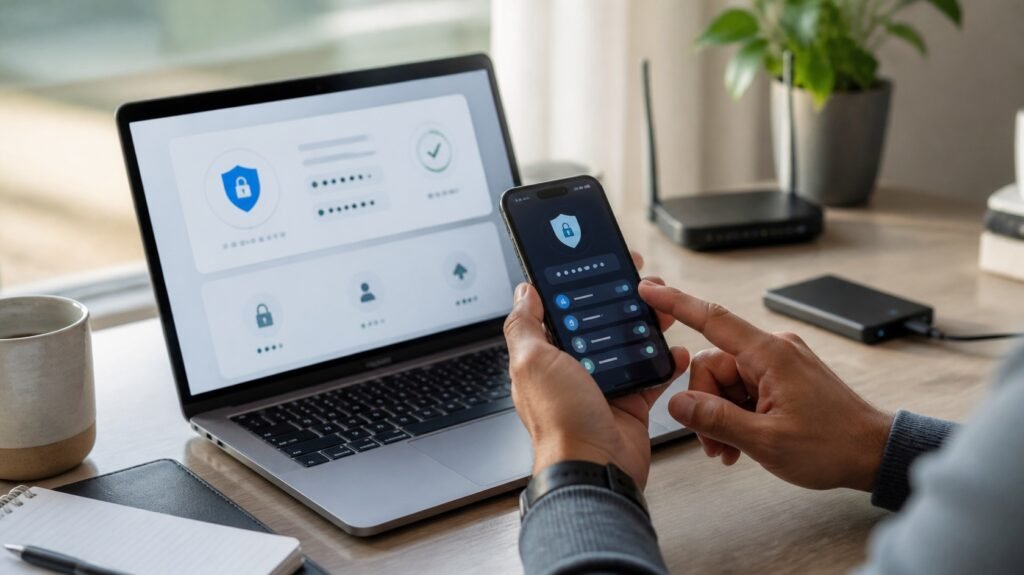
Your name, email address, phone number, photos, location, passwords, payment details, and browsing activity can all become part of your digital footprint. Some of this information is necessary for using online services. The problem starts when you share more than necessary, reuse weak credentials, or give criminals an easy way into your accounts.
Learning how to protect personal data online does not require advanced cybersecurity skills. A few well-chosen habits can significantly reduce your exposure to account takeovers, phishing, identity theft, malware, and unwanted data collection.
The most effective approach is layered: secure your important accounts, protect your devices, share less information, recognize scams, and have a recovery plan if something goes wrong.
How to Protect Personal Data Online: A Practical Guide
Personal data is any information that can identify you directly or contribute to identifying you when combined with other information.
Obvious examples include:
- Your full name
- Email address and phone number
- Home or school address
- Government identification numbers
- Bank and payment information
- Passwords and authentication codes
- Photos and documents
- Location information
Less obvious information can matter too. Your device identifier, browsing behavior, contacts, purchase history, IP address, or social-media activity can reveal useful details about you when combined.
That is why protecting personal data is not simply about hiding your password. It is also about reducing unnecessary exposure.
1. Secure Your Most Important Accounts First
If you only have time to improve a few things today, start with your email, financial, cloud-storage, and primary social-media accounts.
Your email deserves special attention because it is often connected to password-reset systems. If someone gains access to your email, they may be able to request password resets for other services. The FTC specifically recommends protecting email with a strong password and two-factor authentication.
Use a unique password for every important account
Password reuse creates a chain reaction. If an old password is stolen from one website, an attacker may try that same password on your email, shopping, banking, or social accounts.
A better approach is:
- Use a different password for every important account.
- Make passwords long and difficult to guess.
- Avoid names, birthdays, phone numbers, and predictable patterns.
- Never share passwords or verification codes with someone who contacts you unexpectedly.
NIST’s current digital identity guidance also recognizes the value of password managers and emphasizes stronger, less predictable authentication practices.
Use a password manager
A reputable password manager can generate and store unique passwords so you do not have to memorize dozens of them.
Best for: people who have many online accounts or frequently forget passwords.
Limitation: a password manager does not protect you from every threat. If you willingly enter your credentials into a convincing phishing website, the manager cannot make the website legitimate.
Turn on multi-factor authentication
Multi-factor authentication (MFA) adds another verification step after your password. Depending on the service, this might involve an authenticator app, security key, biometric verification, or another method.
CISA recommends MFA alongside strong passwords, phishing awareness, and software updates as core online-security habits.
If an account offers several MFA options, prefer stronger phishing-resistant methods when available. At minimum, enabling an available MFA method is generally better than relying on a password alone.
2. Learn to Recognize Phishing
Phishing is an attempt to trick you into revealing information or taking an unsafe action.
A phishing message might pretend to come from:
- Your bank
- A delivery company
- A university or employer
- A government organization
- A social-media platform
- A friend or family member
The message may claim that your account will be closed, a payment failed, a package is waiting, or an urgent problem needs your attention.
Use the “pause, verify, then act” method
Before clicking:
- Pause. Don’t respond immediately to unexpected urgency.
- Check the sender. Look beyond the display name.
- Inspect the destination. Be cautious of misspelled or unfamiliar domains.
- Verify independently. Open the official app or type the organization’s website yourself.
- Never share authentication codes with an unexpected caller or message sender.
A polished design does not make a message legitimate. Modern scams can look professional, and artificial intelligence can make fake messages harder to identify by grammar alone.
3. Don’t Assume HTTPS Means a Website Is Safe
A website using HTTPS encrypts the connection between your browser and the website. That is useful, but it does not prove that the website belongs to a trustworthy organization.
The FTC warns that scammers can operate fake websites that use encryption.
Before entering sensitive information, check the actual domain name. For example, a fraudulent site may use a domain that looks similar to a real company while adding extra words or changing a character.
For banks, email providers, government services, and other sensitive accounts, consider bookmarking the legitimate website and using that bookmark instead of following unexpected links.
4. Keep Your Phone, Computer, Browser, and Apps Updated
Software updates are not only about new features. They frequently contain security fixes for vulnerabilities that attackers could exploit.
CISA identifies software updates as one of its core recommendations for staying safer online.
Turn on automatic updates where practical for:
- Your operating system
- Web browser
- Mobile apps
- Security software
- Router firmware, if supported
Also remove applications you no longer use. Old, abandoned software increases the number of things you need to keep secure.
5. Review App Permissions
An app may request access to your location, camera, microphone, contacts, photos, files, or other information.
Some permissions make sense. A navigation app needs location access, for example. A simple calculator may not need your contacts.
Review permissions periodically and ask:
“Does this app actually need this information to perform the function I use?”
If the answer is no, consider denying the permission.
This is an example of data minimization: the less unnecessary information an application can access, the less information is exposed if the account, device, or service is compromised.
6. Share Less Personal Information Online
You do not need to provide every requested detail simply because an online form contains a field for it.
When signing up for a service, consider which information is genuinely necessary.
Be especially careful about publicly sharing:
- Your full date of birth
- Home address
- Phone number
- Real-time location
- Travel plans
- School or workplace details
- Photos containing IDs, tickets, or documents
- Answers to common security questions
Social-media posts can also provide clues that attackers use for impersonation or targeted phishing.
Think before posting: Would I be comfortable with a stranger knowing this?
That simple question can prevent unnecessary exposure.
7. Be Careful With Public Wi-Fi
Public Wi-Fi is not automatically dangerous, but it deserves sensible precautions.
Modern websites commonly use encryption, meaning the old idea that every public Wi-Fi network automatically exposes everything you do is outdated. The FTC says public Wi-Fi is usually safe when you are connecting to websites that properly encrypt traffic.
However, the network itself is still not a reason to trust every website or message you encounter.
When using public Wi-Fi:
- Avoid entering sensitive information into unfamiliar websites.
- Confirm that you are using the legitimate service.
- Keep your device and browser updated.
- Avoid connecting to suspicious networks.
- Use a VPN if you have a specific privacy or network-security reason to do so.
Do you need a VPN?
A VPN can encrypt traffic between your device and the VPN provider, which can be useful in some network situations.
But a VPN does not make you anonymous, prevent phishing, remove tracking cookies, secure a compromised account, or make a malicious website trustworthy.
Treat it as one layer of protection—not a complete privacy solution.
8. Secure Your Home Network
Your router connects many of your devices to the internet, so it deserves attention.
Change the router’s default administrator credentials and use a strong Wi-Fi password. Keep the router’s firmware updated and use a modern security standard supported by your hardware.
If your router supports a guest network, it can also be useful for separating visitors or less-trusted devices from your primary network.
The goal is not to turn your home into a corporate security environment. It is simply to remove easy weaknesses.
9. Back Up Important Data
Privacy and security are not only about preventing theft. They are also about recovering when something goes wrong.
A malware infection, ransomware attack, stolen laptop, damaged phone, or hardware failure can make important files inaccessible.
Back up irreplaceable information such as:
- Family photographs
- Educational work
- Important documents
- Personal projects
- Financial records
Keep backups protected from the same problem that could affect your primary device. For particularly important information, having a backup that is not continuously connected to the main device can reduce the impact of some attacks.
10. Monitor Your Accounts and Know What to Do After a Breach
No security strategy can guarantee that a company you use will never experience a data breach.
If a service you use reports a breach, first determine what information was affected.
If your password may have been exposed:
- Change it immediately.
- Change it anywhere else you reused it.
- Enable MFA.
- Review recent login activity.
- Sign out unfamiliar devices or sessions.
- Watch for phishing messages related to the breach.
- Monitor financial accounts if financial information may have been exposed.
The FTC recommends reviewing accounts and taking steps such as changing passwords and enabling two-factor authentication after an account compromise.
Do not assume that a breach notification means your identity has already been stolen. It means you should understand what was exposed and reduce the resulting risk.
Common Mistakes That Weaken Online Privacy
Even people who follow basic security advice can make avoidable mistakes.
Using one password everywhere
Convenient, but risky. One compromised service can expose other accounts.
Treating MFA codes as harmless
Never give a login or verification code to someone who unexpectedly contacts you. The code may be the final step they need to take over your account.
Believing the padlock proves legitimacy
HTTPS protects the connection; it does not certify that the website owner is honest.
Installing too many security tools
More software does not automatically mean more security. Conflicting or unnecessary tools can create complexity without solving the actual problem.
Oversharing on social media
Public information can help criminals personalize scams or impersonate you.
Ignoring old accounts
Unused accounts may still contain personal information and outdated passwords. Delete accounts you no longer need when practical.
A Simple Personal Data Protection Checklist
If you want a practical starting point, work through this list:
-
Secure your primary email account.
-
Use unique passwords for important accounts.
-
Install a reputable password manager.
-
Turn on MFA wherever available.
-
Enable automatic software updates.
-
Review app permissions.
-
Check your social-media privacy settings.
-
Stop sharing unnecessary personal details publicly.
-
Learn to recognize phishing and fake domains.
-
Back up important files.
-
Review account login activity periodically.
-
Remove unused apps and accounts.
-
Know how to respond if your information is exposed.
If you only complete three tasks today, protect your email account, enable MFA, and eliminate password reuse. Those changes address some of the most important account-level risks.
FAQ
What is the most important way to protect personal data online?
Start with your most valuable accounts. Use unique passwords, a password manager, and MFA, especially for email, financial accounts, cloud storage, and other services containing sensitive information. Protecting email is particularly valuable because it can be used to reset passwords elsewhere.
Does a VPN protect all my personal data?
No. A VPN can protect certain network traffic between your device and the VPN provider, but it does not stop phishing, fix weak passwords, prevent all tracking, or guarantee anonymity. Use it as one part of a broader security strategy.
Is HTTPS enough to keep my information safe?
No. HTTPS encrypts the connection between your browser and the website, but a fraudulent website can also use HTTPS. Always verify the domain and make sure you are using the legitimate service before entering sensitive information.
What should I do if my personal information is exposed in a data breach?
Find out exactly what information was exposed. Change affected passwords, eliminate password reuse, enable MFA, review account activity, and watch for follow-up phishing attempts. If financial information was exposed, monitor relevant financial accounts and follow guidance from the affected organization.
Conclusion: Make Online Data Protection a Routine
Learning how to protect personal data online is less about finding one perfect privacy tool and more about building a few reliable habits.
Secure your most important accounts first. Use unique passwords and MFA. Keep your devices updated. Treat unexpected messages and links with skepticism. Share less personal information, review app permissions, maintain backups, and know what to do if a breach occurs.
You do not need to eliminate every online risk. The realistic goal is to make your accounts, devices, and personal information harder to misuse and easier to recover when something goes wrong.
Start with your email account and your most important passwords today. Then work through the checklist one step at a time. Consistent security habits are far more useful than trying to become perfectly private overnight.