
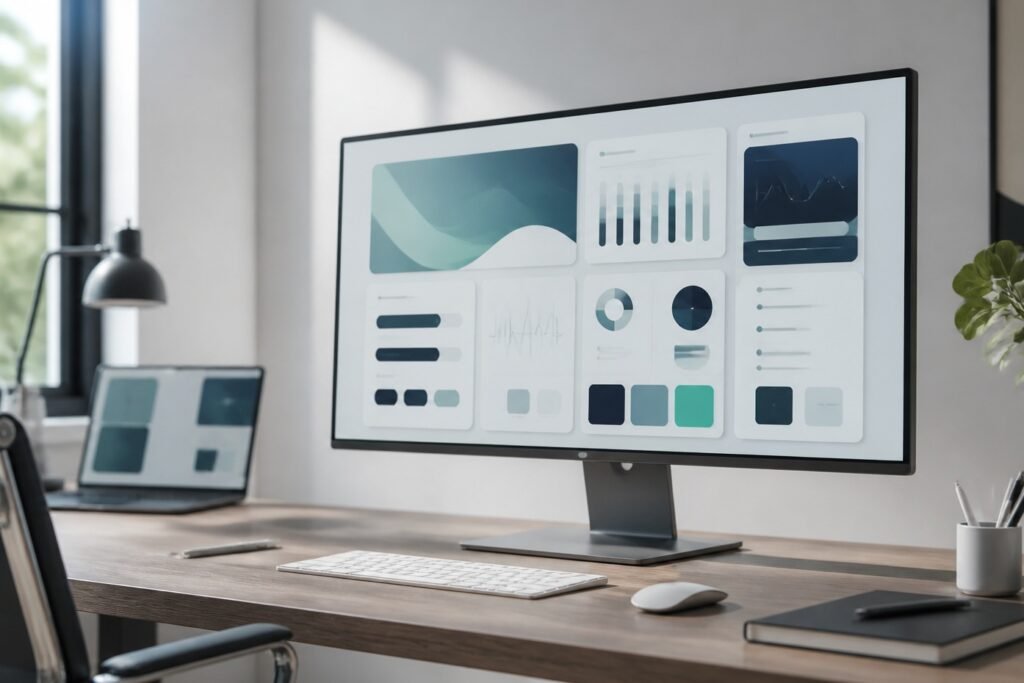
An interface can look beautiful and still be frustrating to use. Cluttered layouts, inconsistent colours, confusing icons, and poorly chosen fonts can make even a well-designed application feel outdated. That is why aesthetic GUI design is about more than appearances. It combines visual appeal with usability, consistency, and a comfortable user experience.
Whether you are designing a desktop application, a website, a mobile app, or a personal computer setup, the right design choices can make your interface feel more polished and intuitive. The key is knowing which visual elements to change, how to organize them, and when to keep things simple.
In this guide, you will learn what an aesthetic GUI is, which design principles matter most, how to choose colours and typography, and how to create an attractive interface without sacrificing functionality.
What Is an Aesthetic GUI?
An aesthetic GUI, or aesthetic graphical user interface, is a visual interface designed to look appealing while helping users interact with digital products easily. It uses elements such as colour palettes, typography, icons, spacing, buttons, menus, and visual hierarchy to create a consistent experience.
A graphical user interface (GUI) allows people to interact with software through visual elements rather than relying entirely on typed commands. Examples include application windows, navigation menus, desktop icons, settings panels, and interactive buttons.
An aesthetic GUI improves the visual presentation of these elements while keeping their purpose clear.
For example, imagine two music applications. The first uses mismatched colours, crowded controls, and several competing font styles. The second has a balanced layout, readable text, consistent icons, and clearly defined playback controls. Both applications might offer identical features, but the second is likely to feel more organized and easier to navigate.
However, an attractive interface is not automatically a good one. If decorative effects make buttons difficult to recognize or text hard to read, the design needs improvement.
The best aesthetic GUI combines visual consistency, accessibility, and practical functionality.
1. Choose a Consistent Colour Palette
Colour is one of the first things people notice when they open an application. It establishes the interface’s mood, separates different elements, and helps users understand where to focus.
The problem is that adding too many colours can make a design feel chaotic. A limited, coordinated palette usually produces a cleaner result.
Select colours that work together
Start with two or three main colours and add neutral shades for backgrounds, borders, and secondary text. Each colour should have a clear purpose.
For example, a modern productivity dashboard might use:
- Background: Soft off-white for a clean, open appearance.
- Primary colour: Deep blue for navigation and important actions.
- Accent colour: Muted teal for highlights and selected elements.
- Text: Dark charcoal for readability.
- Borders: Light grey to separate sections without creating visual clutter.
A dark interface could use a charcoal background, slightly lighter panels, white text, and a single bright accent colour.
The goal is not to use a particular colour combination. It is to make the entire interface feel intentional.
Understand light and dark themes
Light themes often suit document editors, dashboards, and interfaces used in bright environments. Dark themes can work well for media applications, creative software, and users who prefer a darker visual appearance.
Neither option is universally better. Readability depends on contrast, font size, display conditions, and the colours used.
Avoid placing low-contrast grey text on a dark background or pale text on a similarly pale surface. For ordinary text, aim for a contrast ratio of at least 4.5:1, following the Web Content Accessibility Guidelines (WCAG) AA guidance.
Practical tip: Choose your background and text colours first. Then introduce accent colours for buttons, links, active navigation, and other elements that need attention.
2. Use Typography to Establish Visual Hierarchy
Typography affects how an interface looks, how much information fits on the screen, and how easily users can understand it. Even a simple layout can feel professional when its typography is consistent.
Limit the number of fonts
Using several unrelated fonts often makes an interface look unfinished. For most applications, one or two font families are sufficient.
A practical combination is a clean sans-serif font for interface text and a contrasting display font for prominent headings, where appropriate. Alternatively, a single well-chosen font family with several weights can create a consistent design.
Consider using:
- A larger, semibold heading for each main section.
- Medium-weight text for buttons and navigation labels.
- Regular-weight body text for descriptions and instructions.
- Smaller secondary text for supporting information.
These differences help users distinguish important information without relying on colour alone.
Make text comfortable to read
Typography should support the task users are performing. Tiny labels, tightly packed paragraphs, and excessively decorative lettering can make an otherwise attractive GUI difficult to use.
For a typical desktop interface, body text around 14–16 pixels is a reasonable starting point, although the appropriate size depends on the application, font, and viewing distance. Provide enough line spacing to prevent text from feeling crowded.
Also, maintain consistent alignment. Left-aligned text generally works well for paragraphs and settings descriptions, while centred text is more suitable for short headings or focused empty states.
Practical tip: Before adding shadows, gradients, or decorative fonts, check whether the interface remains easy to scan using typography alone.
3. Create a Clean Layout with Proper Spacing
Aesthetic GUI design depends heavily on how elements are arranged. A screen can contain excellent colours and typography yet still look poor when buttons, labels, and panels are placed too close together.
Whitespace, also called negative space, is the empty area surrounding interface elements. It gives individual components room to breathe and helps users distinguish between different sections.
Use a consistent spacing system
Instead of choosing margins randomly, establish a small spacing scale. A simple system might use 4, 8, 12, 16, 24, and 32 pixels.
You do not need to apply every value everywhere. Use the scale consistently to create predictable relationships between elements.
For example:
- Keep an icon close to the label it represents.
- Add more space between separate groups of settings.
- Give headings enough room above and below.
- Maintain consistent padding inside cards and panels.
- Align buttons and input fields along clear edges.
These details make a layout feel organized even when the user cannot explain exactly why it looks better.
Build a clear visual hierarchy
Visual hierarchy determines which elements attract attention first. Size, position, spacing, contrast, and weight all influence what users notice.
A dashboard might place its page title at the top, key performance figures beneath it, and detailed reports further down. A music player might emphasize the play button while keeping secondary controls less prominent.
The hierarchy should reflect the user’s priorities rather than the designer’s desire to decorate the screen.
Avoid filling every available space. A simpler layout with a few well-organized sections is often more effective than a screen crowded with cards, borders, icons, and animations.
Practical tip: Review your interface at its intended display size. If users have to search for the main action or struggle to distinguish separate sections, simplify the layout before adding visual effects.
4. Choose Icons, Buttons, and UI Components Carefully
Icons and buttons make an interface recognizable and interactive. Their appearance should support the overall design without making their function ambiguous.
Keep icons consistent
Choose an icon set with a consistent visual style. Mixing thin outline icons, heavy filled icons, and detailed illustrations can make the interface feel disconnected.
Pay attention to icon size, stroke thickness, alignment, and spacing. An icon should also have an understandable meaning within its context.
For example, a magnifying glass commonly represents search, while a gear usually indicates settings. Less familiar symbols may need accompanying text labels.
Do not assume every icon is self-explanatory. A clearly labelled button is often more useful than a decorative symbol that requires interpretation.
Design buttons around their importance
Most interfaces benefit from a clear distinction between primary, secondary, and destructive actions.
- Primary buttons represent the main action, such as Save, Continue, or Create.
- Secondary buttons provide alternatives, such as Cancel or View Details.
- Destructive buttons perform actions such as Delete or Remove and should be visually distinguishable.
Maintain consistent button heights, corner radii, padding, and text alignment. Use visual feedback to indicate hover, focus, pressed, disabled, and selected states where appropriate.
Interactive elements should also provide adequate click or touch targets. WCAG 2.2 includes a minimum target-size criterion of 24 by 24 CSS pixels in many circumstances, subject to defined exceptions. Larger targets are often more comfortable, particularly on touchscreens.
Practical tip: If a user cannot predict what a button does from its label, appearance, or surrounding context, redesign it rather than relying on visual polish to compensate.
5. Add Visual Effects Without Sacrificing Usability
Gradients, shadows, rounded corners, transparency, and animations can give a GUI a distinctive appearance. Used carefully, these effects add depth and help separate interface layers. Used excessively, they can make the screen distracting and difficult to read.
Use effects with a clear purpose
A subtle shadow can distinguish a floating dialog from the background. A small colour transition can indicate that a button is interactive. A gentle animation can help users understand that a menu has opened.
Each effect should communicate something or improve the experience.
Avoid placing shadows on every component, combining several competing gradients, or using constant movement to make a design feel modern. Decorative elements should not compete with important information.
Transparency and glass-like effects require particular care because text may become difficult to read when the background changes.
Make motion optional where appropriate
Animations can make transitions feel smoother, but some users prefer reduced motion. Respect the operating system’s reduced-motion setting when applicable, and provide alternatives to unnecessary movement.
Keep essential information available without requiring an animation to finish. Important actions should not be delayed by elaborate visual transitions.
Practical tip: Temporarily remove your shadows, gradients, and animations. If the interface still looks organized and remains easy to use, the underlying design is probably strong enough to support those effects.
6. Test Your Aesthetic GUI Before Finalizing It
A design that looks excellent in a screenshot may behave poorly in actual use. Testing helps identify problems that are easy to overlook during the design process.
Check different screen sizes
If your interface runs on different devices or window sizes, test how it responds to resizing. Navigation panels may become cramped, buttons may overlap, and text may wrap unexpectedly.
A responsive interface should adapt its layout to available space while preserving access to important functions.
For desktop software, test common window dimensions and scaling settings. For websites, inspect mobile, tablet, and desktop layouts.
Test accessibility and interaction
Check whether users can navigate with a keyboard, identify the focused element, understand button labels, and read text against its background. Confirm that forms display useful error messages and that interactive controls communicate their current state.
Ask a few people unfamiliar with the interface to complete common tasks. Observe where they hesitate, click the wrong control, or ask for clarification.
Their behaviour provides more useful evidence than simply asking whether they like the colours.
Refine based on actual problems
Prioritize issues that interfere with comprehension or task completion. Fix confusing navigation before adjusting a minor shadow. Improve text contrast before experimenting with decorative typography.
You can then refine spacing, colours, component states, and visual details.
Remember that aesthetic quality is partly subjective, but usability problems can often be identified through observation and testing.
Frequently Asked Questions
What makes a GUI aesthetic?
An aesthetic GUI combines a consistent colour palette, readable typography, balanced spacing, recognizable icons, and a clear visual hierarchy. It should look appealing while making everyday tasks easy to complete.
How can I make my GUI look more modern?
Start by simplifying the layout, removing unnecessary decoration, improving spacing, and using consistent typography. Add subtle shadows or gradients only when they improve visual separation or communicate an interaction.
Which colours are best for an aesthetic GUI?
There is no single best colour palette. Neutral backgrounds paired with a small number of coordinated accent colours are a reliable starting point. Choose colours that suit the application’s purpose and provide sufficient contrast.
What is the difference between an aesthetic GUI and a user-friendly GUI?
An aesthetic GUI emphasizes visual appearance, while a user-friendly GUI emphasizes ease of use. A strong interface combines both, using attractive design without making navigation, reading, or interaction more difficult.
Which tools can I use to design an aesthetic GUI?
Popular options include Figma for interface design and prototyping, Qt Designer for Qt-based desktop applications, and platform-specific development tools for native interfaces. The right choice depends on whether you are designing a concept, building a website, or developing functional software.
Conclusion
Creating an aesthetic GUI is not about adding as many visual effects as possible. It is about making deliberate design decisions that help an interface look consistent, feel intuitive, and work reliably.
Start with a coordinated colour palette, readable typography, balanced spacing, and recognizable controls. Add decorative effects only when they support the design, then test the interface with real users and refine the areas that cause confusion.
Whether you are improving a desktop application or designing a new digital product, prioritize clarity before decoration. A beautiful interface earns its value when people can use it comfortably and confidently.