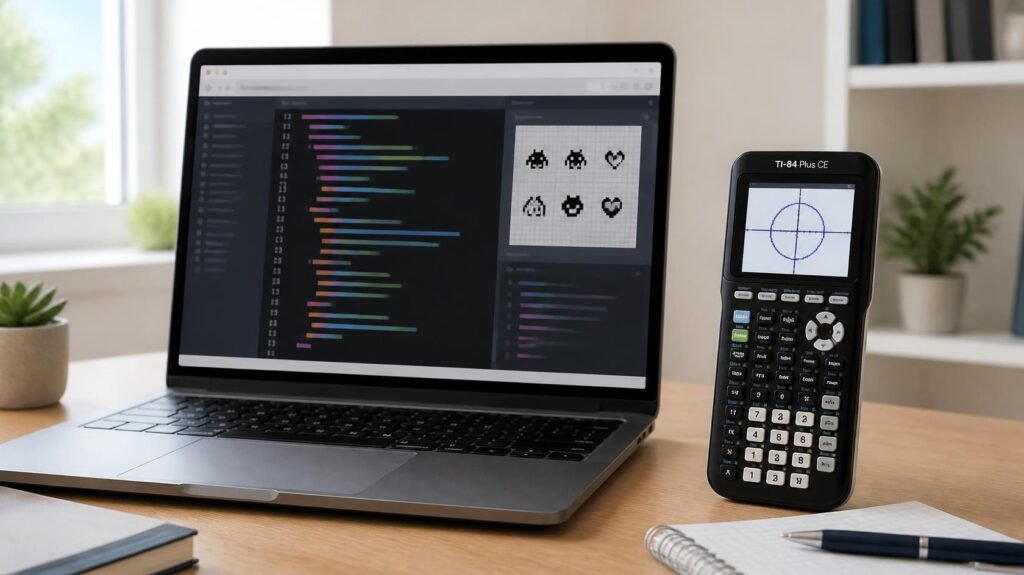
Writing programs directly on a graphing calculator can be frustrating. The small screen, limited keyboard, and complicated file formats make even simple coding tasks unnecessarily time-consuming. Editing a lengthy program or identifying a syntax error becomes particularly difficult when you have to navigate through commands one character at a time.
SourceCoder offers a more convenient approach by allowing users to write, edit, convert, and manage calculator programs through a web browser.
Developed as part of the Cemetech calculator programming community, SourceCoder is an online integrated development environment (IDE) designed primarily for Texas Instruments graphing calculators. It supports several programming languages and calculator data formats, making it useful for students, educators, hobbyists, and experienced calculator programmers.
Whether you want to create your first TI-BASIC application, modify an existing calculator program, or experiment with assembly programming, understanding how SourceCoder works can simplify the development process.
This guide explains its features, supported calculators, practical applications, limitations, and how to get started.
What Is SourceCoder?
SourceCoder is a browser-based programming environment that allows users to create, edit, import, export, and manage programs for compatible graphing calculators. It provides tools for working with calculator-specific programming languages and file formats without requiring a traditional desktop code editor.
The platform is developed by Christopher Mitchell, also known as Kerm Martian, and is available through Cemetech, a community dedicated to calculator programming, mathematics, and technology.
Unlike general-purpose development environments such as Visual Studio Code, SourceCoder focuses on the programming requirements of graphing calculators.
For example, a student using a TI-84 Plus can write a TI-BASIC program on a computer, export it into a compatible calculator file, and transfer it to the physical device.
This workflow is considerably more practical than entering lengthy commands through the calculator’s built-in keypad.
Understanding SourceCoder 3
SourceCoder 3 is the modern web-based generation of the SourceCoder project. It builds on earlier versions by offering a more comprehensive editing environment and additional tools for handling calculator programs and data.
According to Cemetech’s official documentation, SourceCoder 3 supports TI-BASIC, assembly programming, and C programming for selected calculators.
It also provides features such as syntax highlighting, command assistance, image conversion, and integration with the jsTIfied calculator emulator.
These capabilities make SourceCoder more than a simple text editor. It serves as a specialised workspace for developing and managing calculator applications.
Key Features of SourceCoder
The main advantage of SourceCoder is its ability to bring several calculator programming tasks into one accessible environment.
Instead of switching between unrelated utilities, users can perform much of their editing, file conversion, and project organisation through the same interface.
1. Browser-Based Code Editor
SourceCoder allows users to write and modify calculator programs through a web browser.
This eliminates the need to enter every command directly on a graphing calculator.
The editor is particularly helpful when working with longer programs containing loops, mathematical expressions, conditional statements, and multiple variables.
Writing code on a full-sized keyboard also makes it easier to revise program logic and identify mistakes.
2. Syntax Highlighting and Command Assistance
Understanding unfamiliar programming commands can be challenging, especially for beginners.
SourceCoder provides syntax highlighting for supported programming languages, helping users distinguish commands and other elements within their programs.
Its documented command-completion and argument-hinting features can also assist users while writing TI-BASIC code.
For instance, when working with a mathematical function, command assistance can help identify the expected arguments.
However, syntax highlighting does not guarantee that a program is correct. Developers must still test their programs for logical errors and calculator compatibility.
3. Support for Multiple Programming Languages
SourceCoder is primarily associated with TI-BASIC, but its functionality extends to additional languages and development tools.
Supported programming environments include:
- TI-BASIC: For creating applications and mathematical programs on compatible Texas Instruments calculators.
- Z80 and eZ80 Assembly: For lower-level programming on supported calculator architectures.
- C: For supported TI-84 Plus CE development workflows.
- Axe Parser and Grammer: For specialised calculator programming projects.
- Casio BASIC: For selected compatible Casio calculator models.
The precise features available depend on the calculator model, programming language, and SourceCoder toolchain.
Developers should select the appropriate target device before beginning a project.
4. Calculator File Import and Export
Calculator programs use specialised file formats that ordinary text editors cannot always interpret correctly.
SourceCoder helps bridge this gap by converting compatible calculator files into human-readable content.
Users can import existing files, inspect their contents, make changes, and export supported programs.
Common file types include .8xp for TI calculator programs and .8xi for certain calculator picture formats.
This capability is valuable when modifying older programs or examining code shared by other developers.
5. Image Conversion and Sprite Editing
Graphics are an important part of calculator programming, particularly when developing games or visual demonstrations.
SourceCoder provides tools for working with calculator images and sprites.
Users can convert supported image formats, including PNG, BMP, and GIF, into compatible calculator representations.
Its sprite editor also supports graphics development for selected programming environments.
These tools can help developers create characters, icons, and other visual elements without manually entering every graphical instruction.
Image dimensions, colour limitations, and output compatibility still need to be considered.
6. Project Management and Emulator Integration
Registered Cemetech users can access project-management features for saving and organising their work.
This makes it easier to return to unfinished programs and maintain related project files.
SourceCoder also integrates with jsTIfied, an online graphing calculator emulator.
The integration provides a convenient way to test supported calculator programs without repeatedly transferring files to physical hardware.
Emulator compatibility and configuration requirements may vary, so testing on the intended calculator remains important before final use.
How to Use SourceCoder: Step-by-Step Guide
Getting started with SourceCoder is relatively straightforward, although the exact workflow depends on whether you are creating a new program or modifying an existing file.
Step 1: Open the SourceCoder Website
Visit the official SourceCoder interface through the Cemetech website.
The platform provides options for uploading existing files, creating new files, accessing projects, and adjusting editor settings.
You can explore the basic editing tools through your browser. A Cemetech account is useful when you want to save and manage projects online.
Step 2: Select Your Calculator and Program Type
Before writing code, identify your calculator model.
For example, a TI-83 Plus and a TI-84 Plus CE may support different programming capabilities and output formats.
Choose the appropriate programming environment, such as TI-BASIC.
Selecting the correct target helps reduce compatibility problems when exporting and transferring files.
Step 3: Create a Simple Program
A useful first project is a program that calculates the area of a rectangle.
The basic logic is straightforward: request the length and width, multiply the values, and display the result.
A simple TI-BASIC example is:
:Prompt L,W
:L*W→A
:Disp A
The Prompt command requests two values from the user. The next line multiplies those values and stores the result in variable A. Finally, Disp displays the calculated area.
This example demonstrates three essential programming concepts: user input, mathematical processing, and output.
When entering code, use the appropriate TI-BASIC tokens rather than assuming every ordinary text character has the same meaning on a calculator.
Step 4: Review and Edit Your Code
After entering the program, examine the syntax and logical sequence.
Check that variables are used consistently and that every command is supported by your selected calculator.
If command assistance is available for the selected language, use it to inspect unfamiliar functions.
For larger programs, review individual sections before attempting to run the complete application.
This makes errors easier to isolate.
Step 5: Export the Program
Once your program is ready, use the appropriate export option to generate a compatible calculator file.
For many TI-BASIC programs, this involves exporting an .8xp file.
Save the file on your computer and confirm that its intended calculator model matches your hardware.
You may then transfer it using suitable calculator connectivity software and a compatible connection method.
Step 6: Test the Program
Testing is necessary even when the code appears correct.
For the rectangle calculator example, enter a length of 8 and a width of 5.
The expected output is 40.
If the result differs, inspect the variables, mathematical expression, and program execution.
Where supported, the integrated jsTIfied emulator can help with testing.
Physical calculator testing is still advisable because emulator support and device behaviour are not necessarily identical in every situation.
Which Calculators and File Formats Does SourceCoder Support?
SourceCoder supports multiple calculator families, but support should not be confused with universal compatibility.
A program created for one model may require changes before it can run on another.
The following table summarises important examples documented by Cemetech.
| Calculator or platform | Supported programming or data functions |
|---|---|
| TI-83 and TI-83 Plus family | TI-BASIC and supported assembly workflows |
| TI-84 Plus family | TI-BASIC and supported assembly programming |
| TI-84 Plus C Silver Edition | TI-BASIC and compatible colour graphics |
| TI-84 Plus CE | TI-BASIC, supported assembly workflows, and C |
| Selected Casio Prizm models | Casio BASIC editing |
| Selected Casio fx-9750/fx-9860 models | Compatible BASIC program editing |
The editor also recognises several specialised file types.
For example, .8xp commonly represents a TI program, while .8xl and .8xm are associated with list and matrix data.
Certain image files can also be imported and converted for calculator use.
Before downloading or exporting a program, always verify its calculator model, required libraries, file format, and memory requirements.
This prevents a common problem in calculator programming: assuming that programs designed for similar-looking devices are automatically interchangeable.
Practical Applications of SourceCoder
SourceCoder is useful because calculator programming extends beyond basic mathematical calculations.
Its tools support educational activities, programming experiments, and specialised development projects.
Learning Programming Fundamentals
Students can use SourceCoder to practise variables, loops, conditions, and mathematical operations.
For example, a beginner might create a program that calculates examination percentages or converts temperatures between Celsius and Fahrenheit.
These exercises provide a practical introduction to programming logic.
Unlike copying an existing solution, writing and testing the code helps students understand how instructions produce results.
Developing Mathematical Applications
Graphing calculators are frequently used for mathematical and scientific work.
SourceCoder can help users develop programs for repetitive calculations, numerical methods, and educational demonstrations.
A student might create a quadratic-equation solver or a program for evaluating a mathematical sequence.
These projects can be especially useful for exploring how algorithms work.
However, students should understand their institution’s examination rules before installing programs on calculators used during assessments.
Creating Calculator Games
Calculator games remain a popular form of programming experimentation.
Developers can use compatible graphics tools and programming languages to create simple games involving movement, scores, and user-controlled actions.
SourceCoder’s image conversion and sprite-editing capabilities can support this process.
A basic game might involve moving a character across a small screen while avoiding obstacles.
Such projects introduce valuable concepts including event handling, coordinate systems, and game loops.
Modifying Existing Programs
Another practical application is examining existing calculator code.
Instead of rebuilding an application from the beginning, users can import a compatible program and study its structure.
They can then modify calculations, improve the interface, or correct errors.
When using programs developed by other people, users should respect copyright, licensing conditions, and any restrictions on redistribution.
SourceCoder vs Traditional Code Editors
Although SourceCoder provides useful programming features, it is not intended to replace every development environment.
Traditional code editors are generally designed to support a broader range of programming languages, frameworks, extensions, and development workflows.
SourceCoder concentrates on calculator-specific requirements.
| Feature | SourceCoder | General-purpose code editors |
|---|---|---|
| Primary purpose | Calculator programming | Broad software development |
| Browser-based access | Yes | Depends on the editor |
| TI-BASIC support | Built-in | May require extensions or additional tools |
| Calculator file conversion | Built-in for supported formats | Usually requires specialised tools |
| Calculator image tools | Available | Typically require separate utilities |
| General web development | Not its primary purpose | Widely supported |
| Calculator emulator integration | jsTIfied integration | Depends on external tools |
When Should You Choose SourceCoder?
SourceCoder is a practical choice when your main objective is to develop, inspect, or convert programs for supported graphing calculators.
Its calculator-specific tools reduce the amount of manual configuration required for many common tasks.
However, developers creating websites, mobile applications, enterprise software, or large collaborative projects will generally benefit from a more comprehensive development environment.
For more advanced calculator development, specialised compilers, debuggers, and device-specific tools may also be necessary.
The best development environment depends on the language, hardware, and complexity of the project.
Common SourceCoder Problems and How to Fix Them
Even a specialised programming environment can produce errors, especially when files and hardware requirements do not match.
Understanding the most common problems can prevent unnecessary troubleshooting.
A Program Does Not Run on the Calculator
First, confirm that the program was exported for the correct calculator family.
Then check whether it depends on unsupported commands, missing libraries, or features unavailable on the target device.
If the program was designed for a different model, it may need modification rather than a simple file conversion.
A Calculator File Cannot Be Imported
Check the file extension and confirm that SourceCoder supports the file type.
An incorrect extension does not necessarily indicate the actual file format.
Damaged files and incompatible internal structures may also prevent successful parsing.
Where possible, test a known working file of the same type to identify whether the problem is with the file or the workflow.
Program Output Is Incorrect
Incorrect output does not always mean the editor is malfunctioning.
More commonly, the issue involves program logic, variable values, or an unexpected calculation.
Test the program using simple inputs with known results.
For mathematical applications, include zero, negative numbers, and boundary values where relevant.
These tests frequently expose problems that ordinary examples overlook.
Changes Are Not Saved
If you are using project-management features, confirm that you are logged into the appropriate Cemetech account.
Avoid assuming that editing a program automatically creates a permanent backup.
Export important files regularly and keep separate copies of stable versions.
This is especially useful when experimenting with major changes.
Browser or Emulator Problems
If the editor or emulator does not load correctly, check whether your browser supports the required functionality and whether scripts are being blocked.
Reloading the page or testing another current browser may help identify local compatibility issues.
Emulation may also require additional configuration and appropriate calculator system resources.
Use legally obtained calculator software and ROM images where required.
Frequently Asked Questions About SourceCoder
Is SourceCoder free to use?
SourceCoder is available as a free online calculator programming tool through Cemetech. Users can access its editing functions through a browser, while a free Cemetech account provides project-saving and management capabilities. Specific features may depend on the current version and account status.
Can I use SourceCoder without installing software?
Yes. SourceCoder operates through a web browser, allowing users to create and edit supported calculator programs without installing a separate desktop IDE. However, transferring exported files to a physical calculator may require compatible software, hardware, or connection tools.
Does SourceCoder support the TI-84 Plus CE?
Yes. SourceCoder supports the TI-84 Plus CE, including TI-BASIC programming and selected assembly and C development workflows. The available functionality depends on the selected programming language and toolchain. Verify compatibility before transferring files.
Can beginners learn programming with SourceCoder?
Yes. Beginners can use SourceCoder to practise basic programming concepts such as variables, mathematical operations, conditions, and loops. Starting with a simple TI-BASIC calculator program is a sensible approach before progressing to graphics or lower-level programming.
Is SourceCoder the same as SourceCodester?
No. SourceCoder and SourceCodester are different platforms. SourceCoder is primarily a calculator programming IDE associated with Cemetech. SourceCodester is a separate website that provides source code projects, tutorials, and programming resources across various technologies. Their similar names can cause confusion, but they serve different purposes.
Conclusion
SourceCoder provides a practical solution for people who want to develop calculator programs without relying entirely on a graphing calculator’s limited keyboard and display.
Its browser-based editor, calculator file conversion tools, syntax assistance, graphics capabilities, and emulator integration make it useful for both educational and hobbyist programming.
For beginners, the most effective approach is to start with a small TI-BASIC program, understand each command, and test the output using known values. More experienced users can explore assembly programming, C development, sprite editing, and project management.
The important distinction is that SourceCoder is a specialised calculator development environment rather than a universal coding platform.
If you own a compatible graphing calculator, explore the official SourceCoder editor on Cemetech, create a simple program, and test it on your target device. Learning the complete process—from writing code to running it successfully—is the best way to understand what the platform can offer.